How to recover data from an external hard drive and save your files



Recovering data from an external hard drive depends on the underlying issue. If the drive was formatted or data was deleted, you might be able to recover the data yourself. However, if the drive isn’t detected or shows signs of physical damage, professional recovery services may be necessary.
In this article, we cover how to recover deleted files from an external hard drive, warning signs of drive damage, and when it’s time to contact a professional data recovery service.
Important: If you notice any signs of physical damage, such as unusual humming, clicking, or grinding, stop using the hard drive and unplug it immediately. Attempting repairs or recovery can worsen the damage and reduce the chances of successful recovery. Professional data recovery services are typically the safest option for physically damaged drives.
What to do first after data loss
Here’s what you should (and shouldn’t) do pre-recovery:
- Stop using the hard drive: Using the drive after you notice corrupted or missing data may overwrite the old data, making the recovery process significantly harder or even impossible. Disconnect the drive from your computer until you’re ready to begin recovery.
- Clone the drive: Data recovery attempts may end up worsening the state of the drive, so cloning it and attempting recovery on the clone can help preserve original data.
- Don’t format the drive: In some cases, Windows or Mac may suggest formatting the drive because of partition damage. However, that makes any data stored on it harder to access without specialized recovery software.
- Don’t recover lost data on the same drive: Installing and running recovery software and recovering lost data on the affected drive can corrupt or overwrite the original data, making recovery more difficult.
How to tell what kind of external hard drive problem you have
Before beginning the recovery process, you need to know what’s wrong with the hard drive. Two types of issues can affect a hard drive and corrupt data:
- Software (logical) issues: Including accidental data deletion, file system corruption, or malicious software (like ransomware) that can delete or corrupt data.
- Hardware (physical) problems: Physical damage to the hard drive from extreme temperatures or dropping it on a hard surface, for example. This can affect internal components like the motor or read/write heads. External drives can also fail due to faulty cables, USB ports, or enclosures, even if the internal disk is still functional.
To identify the issue:
- Check if the drive appears in your system: Open File Explorer or Disk Management and see if the affected drive appears. If it appears, but files are inaccessible, the issue is more likely to be logical. If it doesn’t appear, the problem could be related to hardware, connections, or more severe corruption.
- Check for common failure symptoms: Warning signs include extremely slow access to files, missing or corrupted files, frequent system freezes when accessing the drive, or unusual noises like grinding or clicking.
- Run a disk error scan (with caution): Tools like chkdsk (for Windows) can scan for file system errors. However, running repair commands may modify the disk and could make data recovery more difficult. If your data is important, consider attempting recovery first or creating a backup before running repairs.
- Test the drive on another system: Connect the drive to a different computer to see if the issue persists. If it works on another system, the problem may be related to the original computer rather than the external drive.
Recover data from an external hard drive that’s still detected
Depending on the circumstances, it may be possible to recover data from an external hard drive if it’s still detected by your system.
Recover data after accidental deletion
Deleted or lost files can often be recovered, particularly if they haven’t been overwritten. However, success depends on factors like the type of storage device and how much the drive has been used since the data was lost. Here are the primary data retrieval methods to try.
Check Recycle Bin and backups
When you delete a file, it may go to the Recycle Bin (or Trash on macOS), depending on how the external drive is configured. You can recover these files by opening Recycle Bin, right-clicking on the files, and selecting Restore. On macOS, the process is the same, except the command is Put back. This will restore the file to the location you deleted it from.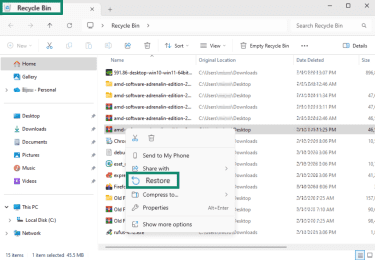
However, there are cases when deleted files don’t go to your Recycle Bin:
- Using Shift + Delete on Windows deletes files permanently.
- Some external drives or removable drives bypass the Recycle Bin/Trash entirely.
- Using the terminal or command-line tools may delete files permanently.
- Recycle Bin settings may be configured to delete files immediately.
In these cases, you may have backups of the affected files. OneDrive and Google Drive are two popular solutions that you may have set up to automatically back up your files. Check your backup platform and see if you can find your data there.
Restore previous versions
You may be able to restore lost or deleted files through the “restore previous versions” option on Windows. This typically requires that File History was enabled beforehand, which backs up files to an external or network drive.
To restore a previous version of a folder:
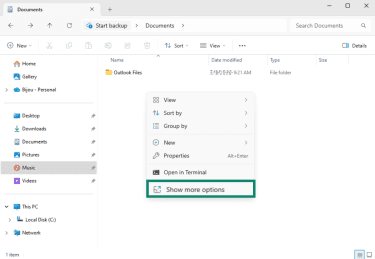
- Navigate to the folder that contained the lost or deleted data, right-click inside the folder, and select Show more options.
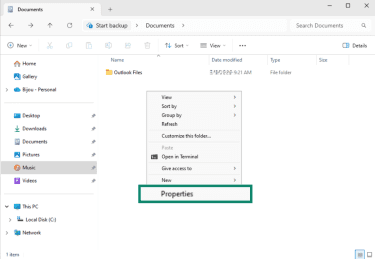
- Select Properties.
- Open the Previous Versions tab, select a version of the folder you want to restore to, and click Restore.
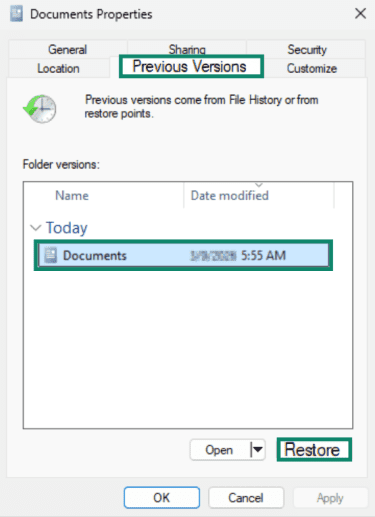
- Confirm by selecting Restore in the next window.
Recover files with data recovery software
If files have been permanently deleted from the Recycle Bin or Trash, you can use recovery software tools such as Disk Drill, EaseUS, Stellar, or Recuva. These tools scan the drive for deleted data that hasn’t yet been overwritten.
Typically, the process to recover data using one of these tools will involve:
- Opening the recovery tool and choosing the drive you want to scan.
- Running a scan to search for deleted or lost files (this may include quick and deep scan options).
- Reviewing the results, previewing files if available, and selecting the data you want to restore.
- Choosing a safe location to recover the files to.
Recover data from a formatted external hard drive
A formatted external drive may still be recoverable, but typically only with specialized data recovery tools. Formatting a drive (especially a quick format) doesn’t necessarily erase the underlying data immediately. Instead, the system marks the space previously occupied by the files as available for new data.
If you continue using the drive after formatting, new data may overwrite the old files, making them impossible to recover. External drives may also be reformatted more easily when connected to different systems, which can increase the risk of accidental formatting. However, if you attempt recovery soon after formatting, recovery software may still be able to reconstruct the lost files.
Recover data from an encrypted external hard drive
Without the correct password or decryption key, recovering usable data from an encrypted external drive is effectively impossible. While recovery tools may still extract raw data from the drive, it will remain encrypted and unreadable without the key.
Recover data from a slow or unstable external hard drive
A slow external drive may indicate hardware degradation or connection issues. If the drive becomes unusually slow when accessing files, continuing to use it may worsen the problem or lead to further data loss.
Instead, try copying important files from the drive as soon as possible, or use specialized data recovery software that can scan the disk sector by sector. If the drive continues to slow down, disconnects repeatedly, or makes unusual noises, it could be a sign of hard drive failure, and professional data recovery services may be required.
Fix an external hard drive that’s not detected
If your computer isn’t detecting your hard drive, there might be loose cables, malfunctioning ports, system corruption, or power issues involved. Try the following first:
- Reconnect the drive carefully and try different cables or USB ports.
- If possible, test the drive on another computer or adapter.
If these steps don’t work, check whether the operating system detects the drive at a lower level. Sometimes a drive won’t appear in File Explorer or Finder even though the system can still recognize it.
On Windows, right-click on the Start button and select Disk Management. On macOS, open Disk Utility and choose External or Disk Images.
In the new window, look for the missing drive in the list of disks.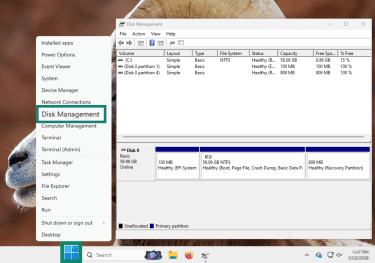
The drive may appear in any of the following states:
- Healthy: You may see something like “(C:)” which means the disk is detected and the partition and file system are intact. If the files you want to copy are accessible, you can copy them immediately.
- Drive detected but no drive letter: If you see a partition without a drive letter, it can mean Windows is seeing the disk and partitions, but the disk isn’t mounted. You can assign a drive letter by right-clicking and selecting Change Drive Letter and Paths, but avoid this if you plan to use recovery software first, as mounting it or attempting repairs could overwrite recoverable data.
- Disk appears offline: You may see “Disk 1 unknown” or “Not initialized," in which case Windows can’t read the disk’s partition table. Don’t initialize the disk if you want to recover data, as this can overwrite the partition table.
- Disk shows unallocated space: If you see “Unallocated” in Disk Management, the partition table may be corrupted, or the partition was deleted.
- Drive shows “no media”: This means that Windows can detect the device, but it can’t access the storage.
If the drive appears in Disk Management but the files are inaccessible, you may still be able to recover the data using specialized recovery software. Data recovery tools can scan for lost partitions or recover files from damaged file systems.
Recover data from an external hard drive with file system corruption
A corrupted file system can render your files inaccessible or damaged, and it may cause system errors, slowdowns, or crashes. Common causes include malware, improper shutdowns or power loss, software errors, and failing hardware.
There are tools on Windows and Mac that can attempt to repair a corrupted file system and recover data, but they aren’t guaranteed to work. Before using these tools, it’s best to exhaust safer recovery methods for lost or deleted files or for drives that won’t boot, because some repair operations may overwrite or delete corrupted data.
Repair disk errors on Windows
Windows lets you try to fix disk errors in two ways:
With Error Checking
- Go to This PC, right-click on the malfunctioning drive, and select Properties.
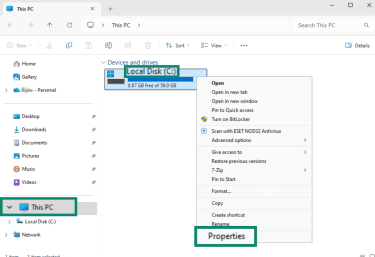
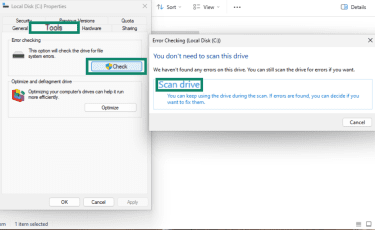
- Select the Tools section and click Check. Select Scan drive and wait for the process to end. It will try to identify and fix any disk-related issues.
Through the “chkdsk” command
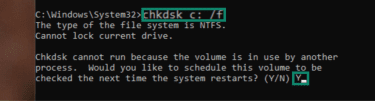
It’s typically better to attempt data recovery tools before running “chkdsk,” as this may remove corrupted files while trying to repair file system errors. Moreover, if you run “chkdsk” on the system drive (where the operating system is installed), Windows may ask to schedule the scan at the next restart because the drive is currently in use.
- Look for cmd in the task bar, right-click on the Command Prompt search result, and select Run as administrator.
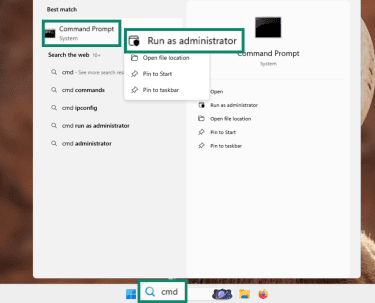
- Type chkdsk <disk name>: /f (for instance, chkdsk c: /f), press Enter, and wait for Windows to identify the disk issues and try to fix them. If you’re trying to scan and fix the same drive your OS is on, you may be asked to schedule the repair for when the system next restarts. In that case, type Y and press Enter.
Repair disk errors on Mac
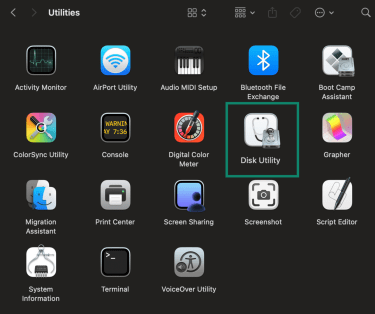
Repairing disk errors on Mac is typically done through Disk Utility, the built-in tool used to manage storage devices. Here’s how to do it.
- From Utilities in your Apps, look for Disk Utility and open it.
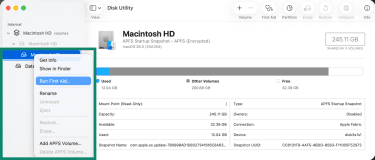
- Select the disk you want to repair and select Run First Aid…
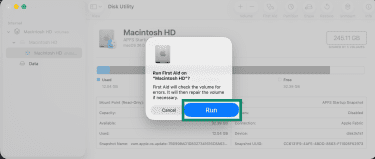
- Select Run to confirm.
Recover data from a physically damaged external hard drive
A physically damaged hard drive is typically more difficult to recover data from. Mechanical failures can compound if you keep using the drive, which can further lower the chances of recovering your data.
Warning signs of physical damage
Symptoms that may suggest hardware failure include:
- Clicking, grinding, or beeping noises.
- Burning smell or visible damage.
- Drive not spinning up or disconnecting repeatedly.
- Extremely slow or unstable access.
- System freezing when trying to access files.
- Computer failing to detect the drive.
Situations that can cause this type of damage include power surges, rough handling, physical impacts, overheating, and water exposure.
What you can try safely
First, stop using a physically damaged hard drive immediately to prevent further damage. Then, try disconnecting and reconnecting it once to rule out cable or power issues. If that doesn’t work, a repair shop might be the best solution.
Professional external hard drive data recovery services
Professional external hard drive data recovery services retrieve data from drives that regular data recovery software can’t handle. This can include drives that have severe corruption, firmware issues, or physical damage.
What to prepare before you send a drive
Before sending a hard drive to a data recovery service, you should remove any unnecessary accessories (like enclosures or adapters), place the drive in an anti-static bag, and wrap it in protective bubble wrap or foam. Use a sturdy box to prevent movement during shipping.
What the recovery process looks like
Technicians use specialized hardware and diagnostic tools to access storage devices safely. Many labs use cleanroom environments to open mechanical hard drives without exposing components to dust. This lets them repair sensitive elements like the read/write heads before attempting data recovery. Here’s what the process might look like:
- Initial diagnosis: Technicians inspect the drive to find the problem or ask you about symptoms.
- Failure analysis: Engineers determine if the issue is logical (like deleted data or file system damage) or physical (hardware failure).
- Repair or stabilization: If the drive is physically damaged, technicians try to stabilize the drive before data recovery.
- Data imaging: A sector-by-sector copy of the drive is created, allowing for safe file restoration (from the copy) without further damaging the drive.
- File reconstruction: Once data extraction finishes, technicians begin rebuilding the file structure and transferring the data to you.
How to prevent hard drive data loss
Dealing with data loss or a malfunctioning hard drive is always difficult, which is why you should try to prevent the situation in the first place. Here’s what you can do to preserve your drive’s integrity.
Backups that work
One rule of thumb is to always back up your important data. This way, even if your drive breaks down, you know your sensitive data is backed up and accessible, either in the cloud (like Google Drive or Dropbox) or on an external drive (such as network-attached storage or NAS).
It’s important to remember that backup solutions don’t automatically save your entire hard drive. They typically only back up specific folders you choose, so careful selection is necessary for an effective backup strategy.
Drive health and warning signs
Maintaining your hard drive in a healthy condition can reduce the chance of data loss. You can monitor a drive’s health (both for HDD and SSD) using Self-Monitoring, Analysis, and Reporting Technology (SMART). This tool is native to many HDDs and SSDs, and on Windows, you can bring it up using the Command Prompt:
Type in the command wmic diskdrive get model, status and press Enter. You should receive an output that mentions all your connected drives, their models, and their status. If the status is OK, then the drive should be performing well.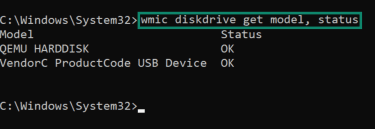
Another, more detailed command is “chkdsk,” which can identify and fix logical issues like corrupted file tables or inaccessible files. However, this command doesn’t diagnose physical hardware problems.
Typically, problematic hard drives show several common warning signs, such as:
- Unusual noises like clicking, loud humming, or grinding.
- Corrupted files or folders that are inaccessible.
- Disappearing files or folders.
- Slow file access or system boot times.
- Sudden overheating with no apparent explanation.
- Frequent disk errors or bad sectors.
Noticing these red flags early can help you prepare by backing up or copying your data before the problems grow.
Habits that reduce risk
To maintain your drive’s health for as long as possible, follow these best practices:
- Keep the drive cool, ideally with proper ventilation from your computer.
- Avoid physical shocks.
- Protect your computer from power surges. A surge protector can help with that.
- Maintain at least 10%–20% free space on the disk.
- Defragment your drive regularly, but only if it’s an HDD. SSDs don’t benefit from defragmentation, and the extra write activity can contribute to wear over time (although in rare cases, such as resizing partitions, some data movement may still be required).
FAQ: Common questions about recovering data from external hard drives
Is it safe to recover data from an external hard drive yourself?
Should I clone an external hard drive before recovery?
Can an external hard drive still work intermittently and be failing?
Why does my external hard drive show up but not open?
Can I recover data from an external SSD the same way as an external HDD?
What does it mean if an external hard drive shows the wrong capacity?
Can a power outage damage an external hard drive and cause data loss?
Take the first step to protect yourself online. Try ExpressVPN risk-free.
Get ExpressVPN