
Google Gmail AI security: How to protect your inbox, privacy, and data


Gmail uses artificial intelligence (AI) to support both everyday email features and account security protections. These systems can help make email easier to manage while also bringing privacy, data access, and security considerations into focus.
What AI and Gemini mean in Gmail
Google uses AI and machine learning (ML) across many products, including Gmail. Gemini is Google’s generative AI family of models, apps, and Workspace features.
Inside Gmail, AI supports both background systems and user-facing tools. Some work quietly as part of Gmail’s core service, while others appear as optional features that users or Workspace administrators may be able to manage through settings.
How AI improves Gmail functionality
Gmail has used ML for years to support inbox organization and security filtering. According to Google’s safety documentation, Gmail blocks more than 99.9% of spam, phishing attempts, and malware from reaching inboxes.
Newer Gemini features build on that foundation by letting eligible users interact with email content in a more conversational way. Depending on account type, language, region, subscription plan, platform, and Workspace administrator settings, Gemini in Gmail may help you:
- Summarize long email threads.
- Draft or rewrite emails.
- Suggest quick responses.
- Find information from previous emails.
- Find information from connected Workspace services, such as Drive files or Calendar events, where available.
- Suggest meeting times or create Calendar events, where supported.
Some of these tools appear directly inside Gmail, while others work through the Gemini side panel. Some smart and Gemini features can be managed through user or Workspace administrator settings, while Gmail’s built-in security filtering remains part of the core email service.
Privacy and security considerations for Gmail AI
Gmail AI risks generally fall into two groups: privacy risks, where AI tools can access or process inbox data, and security risks, where malicious content, compromised accounts, or connected permissions may affect how AI-assisted tools behave.
Privacy concerns include:
- Smart feature data use: Gemini in Gmail and other Workspace smart features may use relevant Gmail or Workspace content and activity when providing AI-assisted or personalized experiences. For cloud-based features, that processing is handled through Google’s services rather than only on the local device.
- Third-party app access: Connecting an external AI tool, browser extension, or productivity app to a Google Account may grant it access to Gmail, depending on the Open Authorization (OAuth) permissions approved. That third party also brings its own privacy and security practices.
- Model training and human review: Data-use rules differ by product and account type. For personal Gemini app users, Google says human reviewers may review some Gemini data to improve and protect its services, and warns users not to enter confidential information they wouldn't want reviewed or used to improve Google services. For qualifying Google Workspace accounts, Google says Gemini in Workspace doesn’t use prompts, Workspace content, or generated responses to train generative AI models without permissions. Google also states that workspace content isn't human-reviewed or used for generative AI model training outside the organization's domain without permissions, and Workspace administrators may have additional controls.
- Over-permissioned AI tools: Some connected tools may request broader access than they need, such as permission to read, send, modify, or manage Gmail data. If a connected tool is compromised or mishandles data, those permissions can expose more inbox data than intended.
Security risks include:
- Prompt injection: Attackers may hide malicious instructions in email text, signatures, attachments, or shared documents. If an AI tool reads that content while summarizing, analyzing, or drafting a response, the hidden instruction may influence the output. However, Google says Gemini includes protections that can warn users, filter or block harmful responses, and exclude suspicious or malicious content from certain actions.
- Data exfiltration through AI responses: If an AI tool has access to Gmail or connected Workspace content, a malicious instruction may attempt to make it reveal sensitive details in a summary, draft, or generated response.
- Misuse of connected permissions: AI tools connected to Gmail may be able to access or act across email, files, calendars, and other services, depending on the permissions granted. This can increase the impact of a compromised account, compromised add-on, or poorly governed integration.
These risks don’t mean Gmail AI is unsafe by default. They show why AI integrations are typically evaluated based on data access, permission scope, governance controls, and human review of AI-generated output.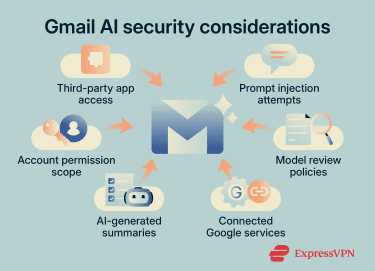
What Gmail AI can access and how Google handles data
Gmail AI data access can be understood in three areas: Gmail smart features, Gemini-connected services, and Google Workspace controls. Each area can involve different data sources, settings, account types, and privacy controls.
How Gmail smart features use email content
Gmail smart features can use content and activity from Gmail, Chat, and Meet to provide personalized features when the relevant settings are enabled. Depending on the feature, this may include relevant message content, message activity, and related interactions.
These settings support features such as writing suggestions, quick replies, summary cards, event suggestions, and other personalized experiences. The privacy consideration is that smart features may use relevant content and activity across Gmail, Chat, and Meet, not only the message currently open.
Separately, according to Google's Workspace security documentation, Gmail and Google Workspace include built-in systems intended to help block phishing, malware, and other harmful content before it reaches users. These protections should not be treated as equivalent to optional smart-feature personalization settings.
Service delivery and data retention
Not all data handling feeds AI training. Depending on the product, account type, and settings, Google’s Gemini Apps Privacy Hub states that Gemini Apps activity may be used to provide, improve, and develop Google products, services, and machine-learning technologies. Google’s broader privacy documentation also describes how information is used to maintain service reliability and to detect abuse, fraud, security risks, and technical issues.
Turning off Gemini Apps Activity doesn't necessarily stop all temporary data handling. Even when Gemini Apps Activity is off, chats are still saved for up to 72 hours to respond to users and help protect Google, its users, and the public, including through human reviewers.
Google Workspace privacy controls
Workspace administrators may have additional controls over Gemini and connected apps, including which Gemini features are available to users and whether Gemini can connect to Workspace apps such as Gmail, Drive, Calendar, Docs, Keep, and Tasks. Google states that Gemini in Workspace can only retrieve content the user has access to, so existing Workspace access controls can limit what it can retrieve.
Manage Gmail AI settings
There isn’t one universal switch for Gmail AI. Gmail smart features, Gemini, and Google Workspace each have separate controls, so the available settings depend on which features are being managed.
Turn off smart features in Gmail, Chat, and Meet
This setting governs personalization in Gmail, Chat, and Meet. Turning it off limits some convenience features in those products, but it doesn’t disable Gemini or automated systems Gmail relies on. Some features may have separate controls, and Gmail’s built-in security systems are handled separately.
To change the settings:
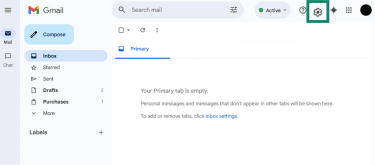
- Open Gmail on a computer.
- Click the gear icon (Settings) in the top-right corner.
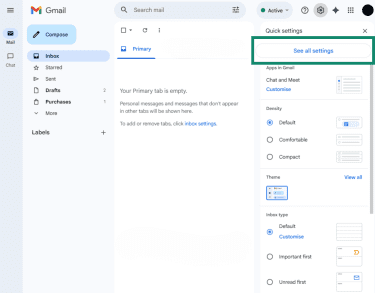
- Select See all settings.
- In the General tab, scroll to Smart features.
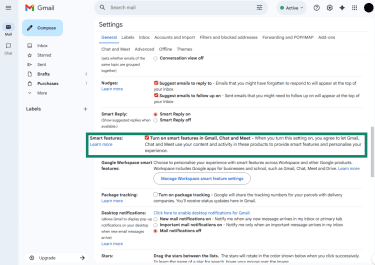
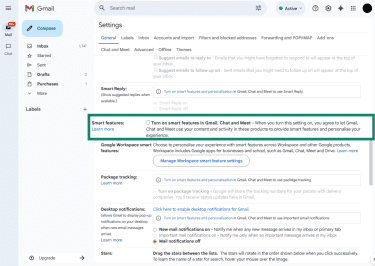
- Next to Turn on smart features in Gmail, Chat, and Meet, uncheck the box.
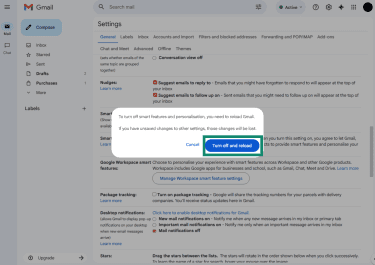
- If prompted, click Turn off and reload to save changes and reload Gmail.
Because this is an account setting, the change applies to that Google Account rather than only the current browser.
Turn off Google Workspace smart features
- Open Gmail on your computer.
- Click the gear icon in the top-right corner.
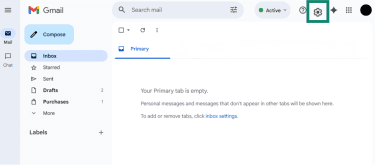
- Click See all settings.
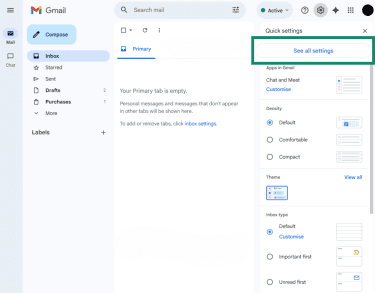
- Under the General tab, scroll to Google Workspace smart features.
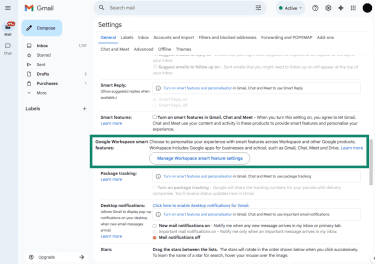
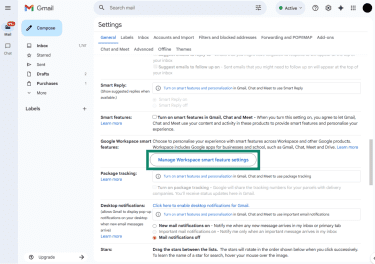
- Select Manage Workspace smart feature settings.
- Turn off Smart features in Google Workspace and Smart features in other Google products.
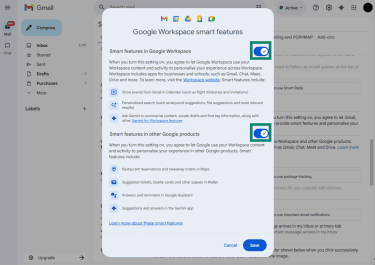
- Click Save.
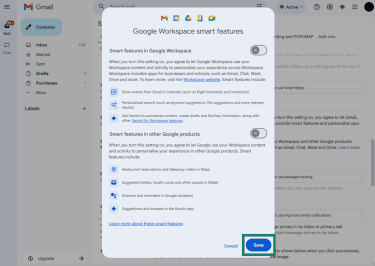
You can also reach these settings from Google Calendar, Chat, Drive, Gmail, and Meet. The exact path varies by product, but each one leads to the same two Workspace smart-feature controls.
Manage Gemini settings in Google Workspace
Google Workspace accounts can have separate Gemini controls managed by an administrator, distinct from the personal Google Account controls. Available controls can depend on Workspace edition, user license, age settings, and admin privileges.
Admins can manage:
- Access to the Gemini app.
- Gemini features in supported Workspace services.
- Gemini app conversation history.
- Gemini in Workspace conversation deletion and retention settings.
- Workspace Intelligence data sources, such as Gmail, Drive, Docs, Calendar, and Chat.
- Gemini app access to supported Workspace apps, such as Calendar, Docs, Drive, Gmail, Keep, and Tasks.
Gemini app access
In the Google Admin console, go to Generative AI > Gemini app, then click Service status to turn the Gemini app on or off. This controls access to gemini.google.com, Gemini mobile apps, and Gemini in Chrome, but not other AI features in Workspace services.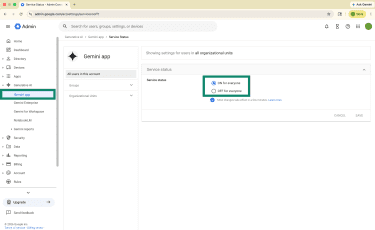
To restrict Gemini app access to specific users, select the relevant organizational unit or configuration group before changing the service status.
Connected apps
Under Generative AI > Gemini app, use the Apps section to manage whether users can allow Gemini to connect Workspace apps or other Google apps.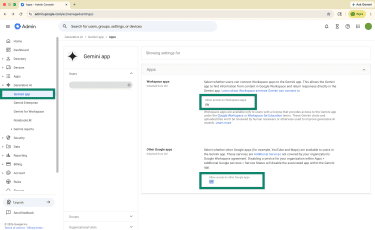
Gemini for Workspace settings
- Go to Generative AI > Gemini for Workspace to review Workspace-level Gemini settings, such as Workspace Intelligence Sources and Conversation history & deletion.
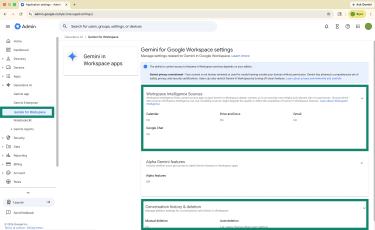
- In Workspace Intelligence Sources panel, edit settings from the relevant group or organizational unit to choose which services can contribute data to Workspace Intelligence, such as Gmail, Drive and Docs, Calendar, and Google Chat.
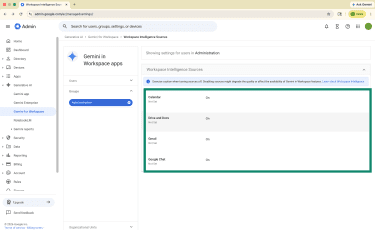
Turning off one control doesn't necessarily block every possible use of Workspace content. If Workspace Intelligence is turned off for a data source, Gemini will not actively search that source, but may still use specifically referenced Workspace content, such as Drive files, emails, or Chat messages. Google also says that currently active content in an app may still be used to provide a more relevant response.
Conversation history and reports
Review Conversation history & deletion separately, because these settings can affect how long Gemini in Workspace conversations are retained. Use Gemini reports to review organization-level and user-level Gemini usage.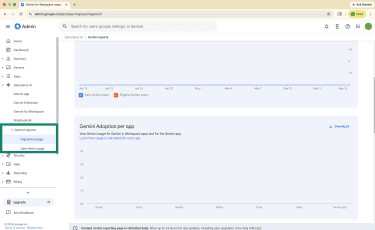
Gmail AI settings you can’t disable
Turning off Gmail smart features or Gemini settings doesn’t disable Gmail’s separate automated security and account-protection systems. These include:
- Spam and phishing detection.
- Malware scanning.
- Security-related threat detection.
- Google Account suspicious sign-in detection.
- Abuse and harmful content detection.
How to protect your Gmail account
Gmail security involves more than privacy settings. It also involves account protection, app permissions, and phishing detection.
Review third-party AI apps with Gmail access
Third-party AI tools can introduce different risks than Gmail’s built-in features. If an external app or browser extension has access to a Google Account, it may be able to read, modify, or manage Gmail data, depending on the permissions approved. Any data accessed by that third party may then be handled in accordance with the third party’s own privacy and security policies.
A connected-app review can include AI tools or browser extensions no longer in use, apps with broad Gmail permissions, and tools with unclear privacy or security practices.
Removing access stops the app from using your Google Account going forward, but it doesn't necessarily delete data the app already accessed or stored.
Be wary of prompt injection in AI summaries
An injected email could influence an AI-generated summary to present a phishing link as a useful next step, attempt to include sensitive details in a generated reply, or, in AI systems with permission to take actions, attempt to trigger actions such as forwarding content or sharing files.
AI summaries are best treated as a starting point rather than a source of truth. For messages that request link clicks, information sharing, approvals, or payments, the original email should be checked before taking any action.
Secure your account with 2FA and passkeys
Strong sign-in protection matters even if your AI settings are locked down. If someone gains access to a Google Account, they may be able to read emails, use email-based password resets for other services, authorize third-party app access, or change account security settings.
Google's two-factor authentication (2FA) adds a second verification step to password-based sign-ins. That second step can include a code from an authenticator app, a Google prompt, or a physical security key. SMS codes are generally weaker than app-based prompts, authenticator apps, passkeys, or security keys because they can be affected by SIM-swap and number-porting attacks.
Passkeys are more phishing-resistant because they let users sign in without entering a password or one-time code. A Google Account passkey can use a fingerprint, face scan, or device screen lock to confirm sign-in. Google says passkeys are more secure against phishing because they can’t be shared, copied, written down, or accidentally given to someone else.
Google sends security alerts for important account actions or suspicious activity, such as certain sign-ins, password changes, or third-party access events. Some alerts or sign-in prompts ask the account holder to confirm whether the activity was expected. In social-engineering attacks, attackers may try to trigger legitimate sign-in prompts or alerts and pressure the account holder into approving them. Unexpected prompts should not be approved.
FAQ
Does Gemini use my Gmail data to train AI models?
Are Gmail smart features safe to keep enabled?
Can AI-generated Gmail summaries expose sensitive information?
Should Google Workspace admins disable Gmail AI features by default?
How often should I review Gmail security and privacy settings?
What is the safest way to use AI tools with Gmail?